
There are sample well test screens and scripts included on the CygNet CD_Image. The .can files must be opened in the Canvas HMI application, are based on a sample configuration, and must be modified to work within your installation.
In the CD_Image folder find the Samples\Well Test folder, which contains the following files:
Some things to consider:
The Canvas screens are configured with C4PROD.BSSCAN as the BSS source. You can change the site service by using the Find/Replace feature in Canvas. See the instructions below.
The Well Test Status.can Canvas screen uses the well test configuration XML. The path to the point that contains the configuration is located in the script section of the screen near the top. You will need to modify this according to your installation. See the instructions below.
The sample Canvas screens provided use hard-coded UDCs that may not be the same as the UDCs that you are using in your installation. If that is the case, then you will need to change the configuration of the various objects to match your installation. To use the screens, perform the following steps.
string point = @"C4PROD.UIS:WELLTEST_CONFIG_V3";
Change the value of 'point' to be the fully qualified point value where the configuration resides in your installation.
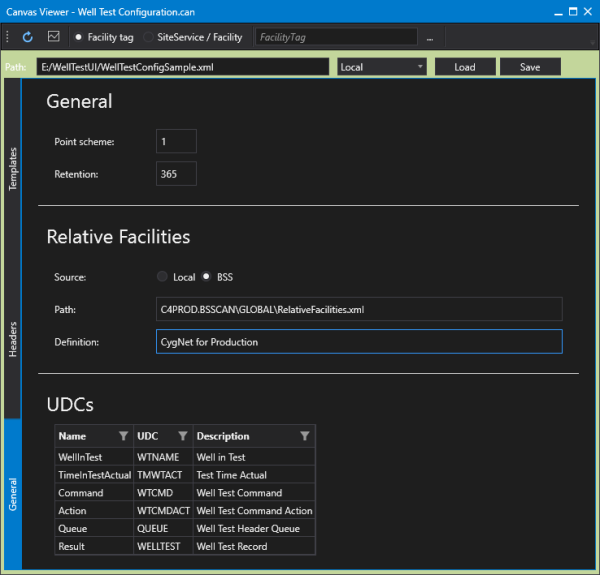
The Well Test Configuration sample screen (Well Test Configuration.can) is a Canvas screen that can be used to easily load, configure, and save the XML required by the CygNet Well Test Module using a friendly user interface. The sample screen contains several Canvas controls, including a Text tool, Edit Box, Combo Box, Buttons, and a Well Test Control.
The Well Test Control (CygNet.API.WellTest.Controls.dll) is a plugin control assembly that is available for use in Canvas to allow the manual definition of the well test configuration XML file. This plugin provides a user-friendly method for defining the necessary elements required to execute a well test via a Canvas screen. Using the control assembly and a configuration screen you can easily define the following well test properties: point scheme, data retention value, relative facilities, UDCs, headers, wells in the well test, header templates, positions, commands, and associated actions for each command.
See Configuring Well Test Using Canvas for more information about using this screen.
|
| Canvas Well Test Configuration Sample Screen |
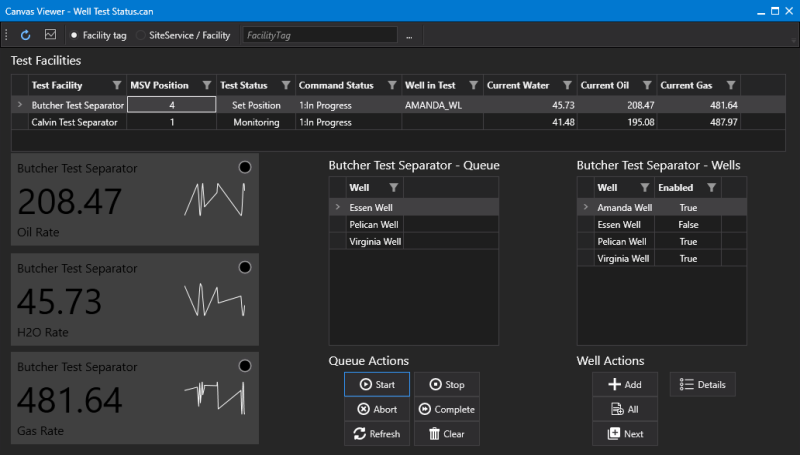
The Well Test Status sample screen (Well Test Status.can) is a Canvas screen that reads the well test configuration XML file and presents a grid of test facilities with some status information. The lower half of the screen is driven by the test facility selection in the grid. Along the left side of the screen are three process variables showing various rates for the current well in test.
|
| Canvas Well Test Status Sample Screen |
The grid on the far right of the screen (Wells) is a list of associated wells for the selected header. The test queue can be altered using the Add, All, and Next buttons, as follows:
The grid in the middle of the screen (Queue) represents the current queue. The buttons below that grid control the actions of the queue:
There is a Details button below the associated well grid. Click the Details button to open the Well Test Details screen.
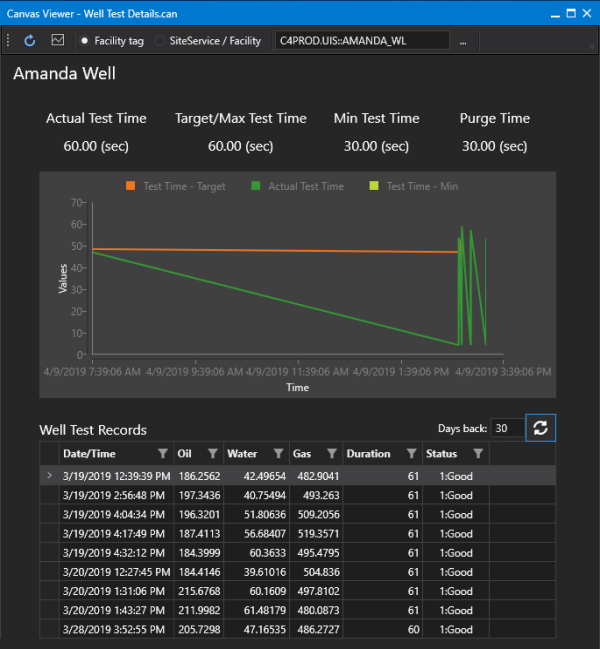
The Well Test Detail screen (Well Test Detail .can) is a Canvas screen that shows further detail about the selected well from the associated well grid.
The upper portion of the screen shows test time UDCs for the selected well: the Actual Time in Test, Target Test Time, Minimum Test Time, and Purge Time, provided they are configured. The Actual Test Time and Target Test Time are included on the chart.
The lower portion of the screen shows the raw Well Test Records for the selected well. The Days Back edit box and Refresh button can be used to adjust starting day of test records.
|
| Canvas Well Test Details Sample Screen |
|
|
|

